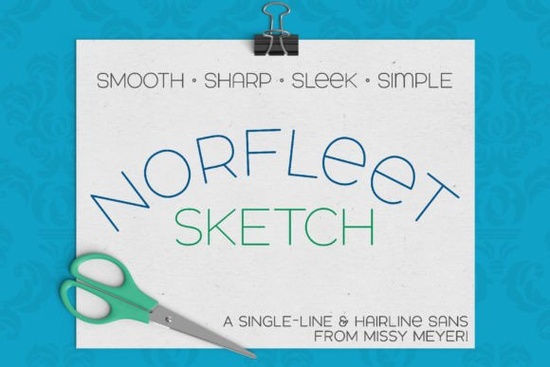
If you’ve been searching for a clean, modern single-line font that works beautifully with sketch pens, foil quills, or engraving tools, Norfleet Sketch (Single Line) Font might be exactly what your project needs. Designed from scratch as a true single-stroke typeface, it’s built for precision crafting not for printing documents or standard cutting machines. Its smooth curves, minimal nodes, and wide stance give it an elegant sans-serif look that pairs well with almost any other font, though it holds its own just fine solo.
Which version should I download “One” or “Two”?
This is the most common question users have, and it’s an important one. Norfleet Sketch comes in two distinct formats:
- Norfleet Sketch One: A true single-line font where each letter is drawn with one continuous stroke. Ideal if you’re using advanced vector software like Illustrator, Inkscape, or Affinity Designer and you know how to manually disconnect the start and end points if needed. Also compatible with some CNC programs like Rhinoceros.
- Norfleet Sketch Two: A hairline font technically an outline, but the lines are so close together they appear as one. This version is plug-and-play for crafters using Silhouette Studio, Cricut Design Space, CorelDRAW, and similar platforms. No tweaking required.
Not sure which to pick? The included PDF guide walks you through compatibility by program, plus tips on setup and troubleshooting.
What can I actually use this font for?
Because it’s designed as a single-line or hairline style, Norfleet Sketch won’t work for regular printing or vinyl cutting. Instead, think of tools that draw rather than cut or fill:
- Sketch pens in Cricut or Silhouette machines
- Foil quill attachments
- Infusible ink pens
- Glowforge scoring function
- Engraving tools or stylus-based plotters
It’s perfect for minimalist greeting cards, custom journals, engraved gifts, or even branding mockups where you want that hand-drawn-but-polished look. Since it’s all uppercase with subtle lowercase variants (like a round-topped A or lowercase-style e), it gives you flexibility without visual clutter.
How does it compare to other single-line fonts?
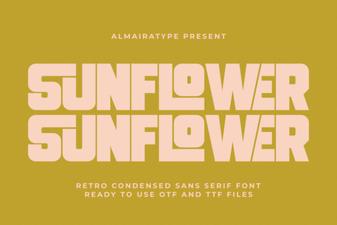
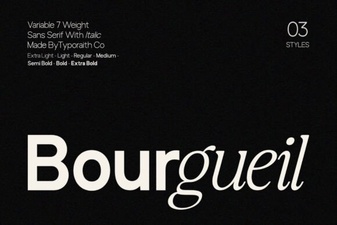
If you’ve tried Bright Darling Duo or Sunflower, you’ll notice Norfleet Sketch leans more toward geometric precision than playful flair. It’s less ornate than Adventure and less calligraphic than Bourgueil, making it ideal when you need something crisp, scalable, and professional-looking.
You can also check out Norfleet Sketch directly on Creative Fabrica to preview glyphs, licensing options, and customer examples.
Will this work with my software?
Most major design and crafting platforms handle Norfleet Sketch Two without issue. That includes:
- Cricut Design Space
- Silhouette Studio
- Adobe Illustrator
- Affinity Designer
- Inkscape
- CorelDRAW
However, if you’re using Brother Canvas Workspace, there’s a known compatibility issue with single-line fonts in general so proceed with caution or stick to the hairline version if possible.
Any tips for getting the best results?
A few small adjustments can make a big difference:
- Test your tool pressure first. Single-line fonts respond differently depending on pen thickness or stylus weight. Do a quick sample before committing to a full project.
- Scale wisely. Because of its minimal node structure, Norfleet Sketch scales cleanly but avoid going too tiny. Hair-thin strokes may disappear or break up on textured surfaces.
- Pair intentionally. Try combining it with a bold serif or handwritten companion font for contrast. The clean lines of Norfleet Sketch let other fonts shine without competing.
Whether you’re personalizing tumblers, designing wedding place cards, or mocking up boutique packaging, this font brings a refined, contemporary touch that doesn’t require hours of editing. And because it’s optimized for specific tools not generic use you’re getting a purpose-built asset, not a jack-of-all-trades font that compromises on performance.
Ready to try it?
Download both versions (One and Two), open the included PDF guide, and test each in your preferred software. Start with a simple word or monogram to see how your machine handles the stroke style. Keep the hairline version handy for quick projects, and save the single-line version for when you want total control over path behavior in vector editors.
Explore Design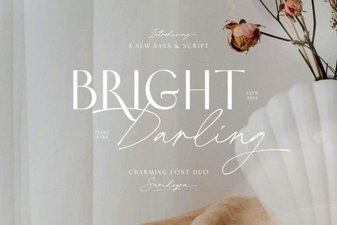 Bright Darling Duo: Creative Font Pairing Guide
 Sunflower Font Design Projects & Inspiration
 Bourgueil Font: Design Projects & Download
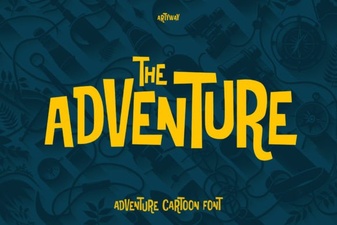 Adventure Fonts for Dynamic Design Projects
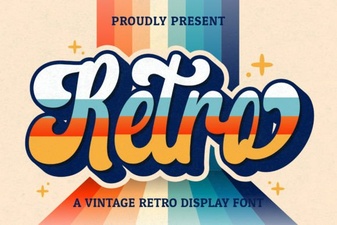 Elevate Your Design with Vintage Retro Script Fonts
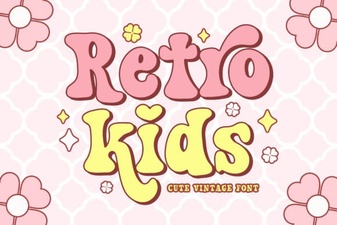 Crafting Projects with Retro Kids Font Styles